A Guide to Solveit Features
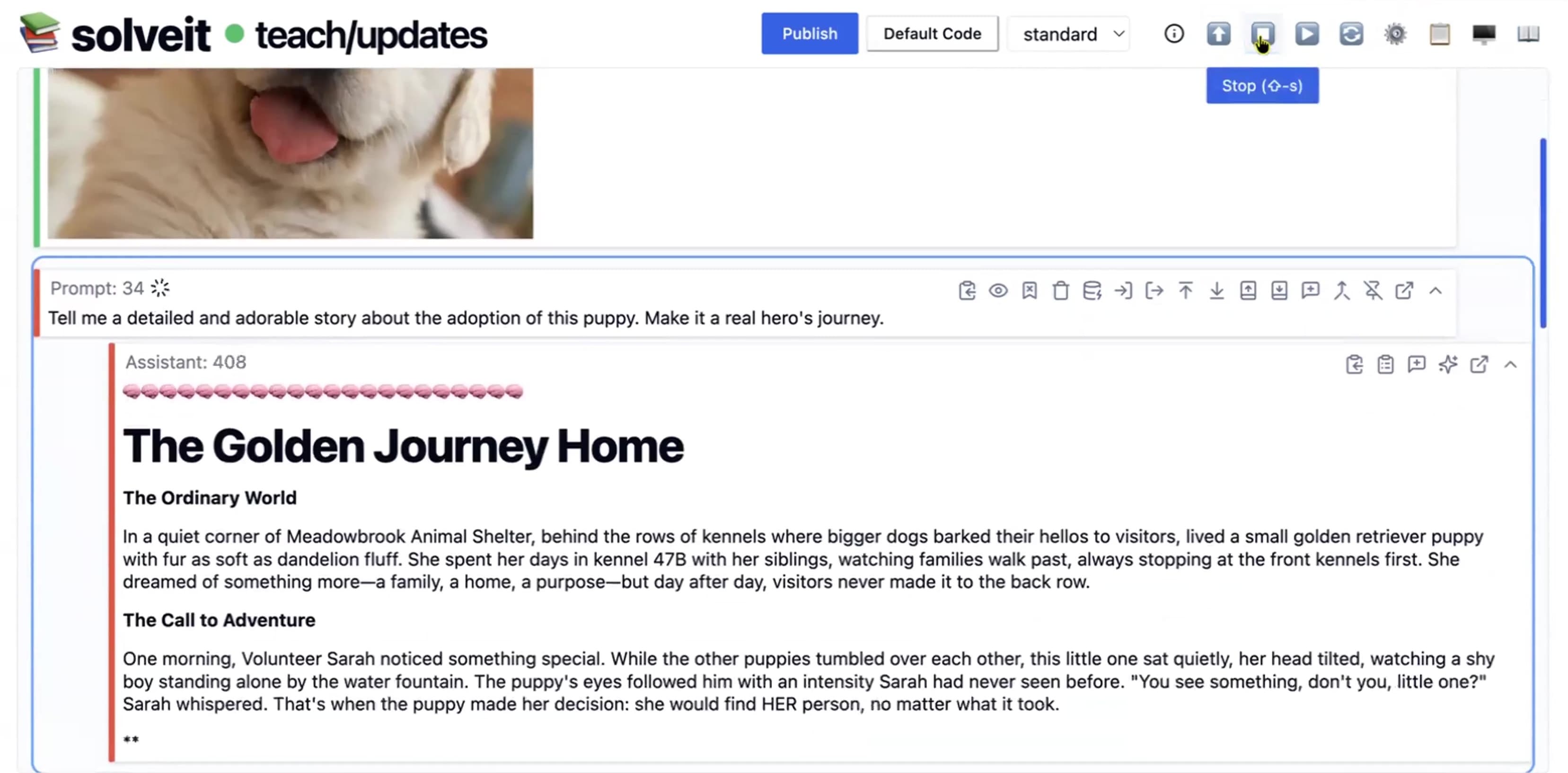
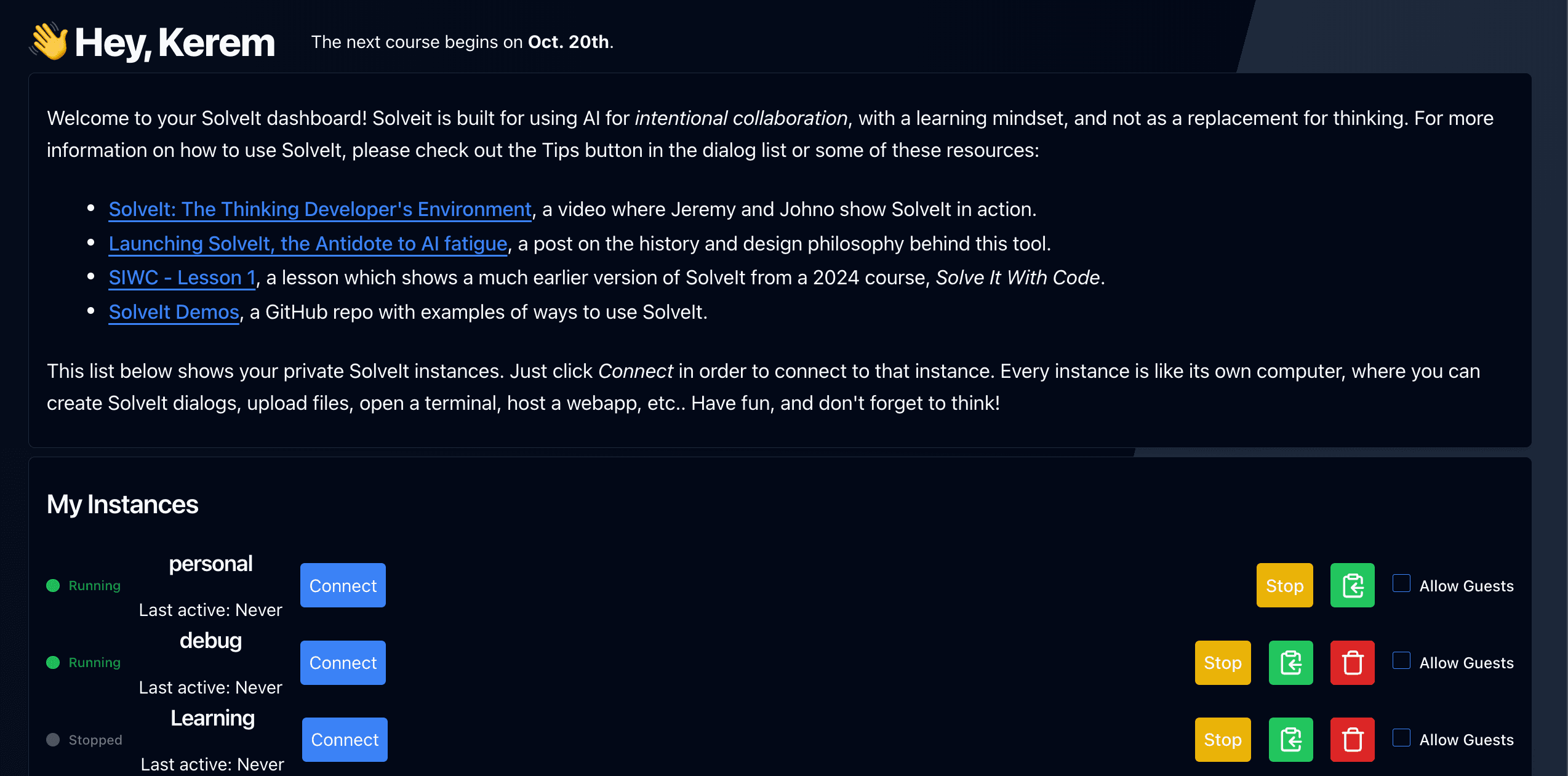
Introduction Large language models make it remarkably easy to generate code. Ask ChatGPT or Claude to build an application, and you’ll receive hundreds of lines of working code in seconds. But this creates a problem: you get code you don’t understand, and when you need to modify it, fix a bug, or add a feature, you’re stuck. Solveit solve.it.com takes a different approach. Rather than generating large blocks of code, it works with you interactively to build solutions piece by piece. You write one or two lines at a time, understand what they do, then move to the next step. The AI sees your full working context and suggests what comes next based on what you’re actually building. This method may sometimes be slower initially, but produces something more valuable: working code that you understand. Code you can modify, extend, and maintain. Code that becomes part of your expanding skill set rather than a black box you’re afraid to touch. This document covers the features of the Solveit platform, built specifically to support this interactive, incremental approach to development. You can read it end-to-end, or use it as a reference guide when you’re using the platform. Alternatively, you can watch the video that this article is based on here, to see the features in action (fun fact: this article was created using Solveit, using an approach similar to our article Let’s Build the GPT Tokenizer): Dashboard & Setup Dashboard When you log in to SolveIt, you land on the dashboard. The key thing here is My instances. An instance is your personal machine on which SolveIt runs. It’s a full virtual private server where you can install software, store files, and host applications. You can create multiple instances to keep different environments isolated. To start working, click Connect next to an instance which will take you to it’s private link. The dashboard tracks your running kernels and active sessions across all instances. Instances An instance is your personal machine in the cloud - a complete virtual private server with its own file system, installed software, secrets, and the ability to host applications. You can create multiple instances to keep different environments isolated. Maybe one for a course, another for a personal project, and a third for experiments. To create an instance, type a name in the input box and click “Create Instance”. Each instance is a full Unix box where you can install packages, clone repos, and work as you would on any remote server. Private URLs Each instance has a private URL - your secure access point to the SolveIt interface, dialogs, and files. Instance list showing the “Allow Guests” checkbox for sharing access By default, your private URL only works from the browser session where you logged in. This keeps your instance secure even if someone gets the URL. To share access with others, check the “Allow Guests” box for that instance, Stop the instance, and then start it again. Now anyone with the private URL can access…